
Module 1: Dashboard & Overview
Real-time school performance metrics, role-based toolbars, and learner compliance tracking.
- Admin & Teacher Toolbars: Global student search, role-scoped notifications, and a comprehensive user profile dropdown.
- Quick-Access Hubs: Jump directly to Students, Documents, Users, and core settings from prominent dashboard shortcut cards.
- Visual Compliance Analytics: Real-time animated charts for JHS/SHS digitalization progress, grade level breakdown, 30-day upload trends, and storage usage.
- Dashboard Layout Customization: Personalize card order, toggle between full and half width widgets, hide or restore cards, and reset layouts anytime.
The Dashboard serves as the central command center in TIS-RMS. It aggregates critical school data into an accessible, intuitive interface that automatically adapts to whether an Administrator or Classroom Teacher is currently signed in.

Admin & Teacher Shared Header Tools
Both Administrator and Teacher roles have immediate access to three essential navigation utilities in the top header:
Global Student Search
Search for students across the entire school by first name, last name, or 12-digit LRN, and navigate directly to the Students screen.
Role-Based Notifications
Administrators receive school-wide system notices, while teachers receive targeted notifications related specifically to their assigned advisory sections.
Profile Dropdown
Displays user full name, assigned role, registered email address, and phone number, with direct buttons to navigate to Settings or Log Out.
1. Global Student Search Bar

Direct learner lookup by name or 12-digit LRN with instant transition to the Students module

2. Role-Based Notification Feed

Audited system alerts and activity notices filtered automatically by administrative or teacher scope

3. User Profile & Session Dropdown

Quick-view profile details, contact information, Settings shortcut, and secure sign-out

Administrator Side: Dashboard Overview
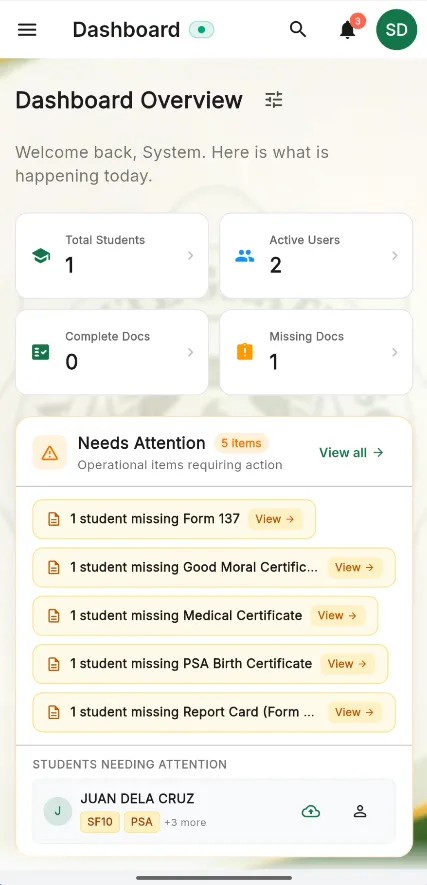
The Administrator Dashboard provides comprehensive high-level control with quick navigation shortcuts and multi-dimensional analytics:
- Quick Navigation: Direct one-click links to the Academic & Class Management screen and the Document Requirements screen.
- Quick-Access Action Cards: Fast navigation tiles to the Students, Documents, and Users modules.

Comprehensive control center featuring quick navigation cards, class setup shortcuts, and status counters
Administrator Visual Graphs & Analytics
Administrators can monitor institution-wide health through five rich visual graphs updated live from the server:
- Digitalization Progress for JHS and SHS: Tracks the exact count of students who have completed all required documents, clearly separated into Junior High School (JHS) and Senior High School (SHS) cohorts.
- Overall Document Status: Displays the total count and status breakdown of uploaded files across the school.
- Document Breakdown by Grade Level: An interactive chart visualizing completed vs. submitted document requirements across Grade 7 through Grade 12.
- 30-Day Upload Trend: A dynamic line graph showing document submission velocity over the past 30 days to identify submission spikes.
- Storage Analytics: Visualizes which document categories (SF9, SF10, PSA, etc.) consume the most server storage space.

Animated analytics showcasing JHS/SHS digitalization progress, grade level distribution, 30-day velocity, and disk storage usage
Dashboard Layout Customization
TIS-RMS empowers staff to tailor their dashboard layout to best match their individual workflow. By tapping the customization button in the top toolbar, users enter Dashboard Customization Mode:
Reorder Cards & Widgets
Move cards up or down using drag handles or reordering arrow buttons to position priority metrics exactly where you need them.
Flexible Width Toggle (50% / 100%)
Toggle widgets between half-width (50%) and full-width (100%) spans to optimize screen real estate on desktop monitors and tablet displays.
Hide & Restore Cards
Hide non-essential widgets with one click to minimize distraction. Restore any hidden card or reset the entire layout to defaults at any time.

Demonstrating real-time card reordering, span width toggling (half/full), widget hiding, and layout reset
Teacher Side: Dashboard Overview
The Teacher Dashboard is streamlined to focus specifically on the teacher's assigned advisory classes:
- Quick-Access Advisory Hubs: Direct navigation buttons to the Students and Documents modules scoped exclusively to their advisory classes.
- Section Compliance Overview: Immediate status counts and completion progress for all learners enrolled in the teacher's designated sections.
- Personalized Workspace: Teachers can customize their layout just like administrators, placing relevant grade sections and checklists within easy reach.

Tailored classroom dashboard with section switchers, advisory compliance metrics, and document status progress